- Complete rewrite for macOS, and first release for iPhone and iPad
- New modern interface, with Dark Mode
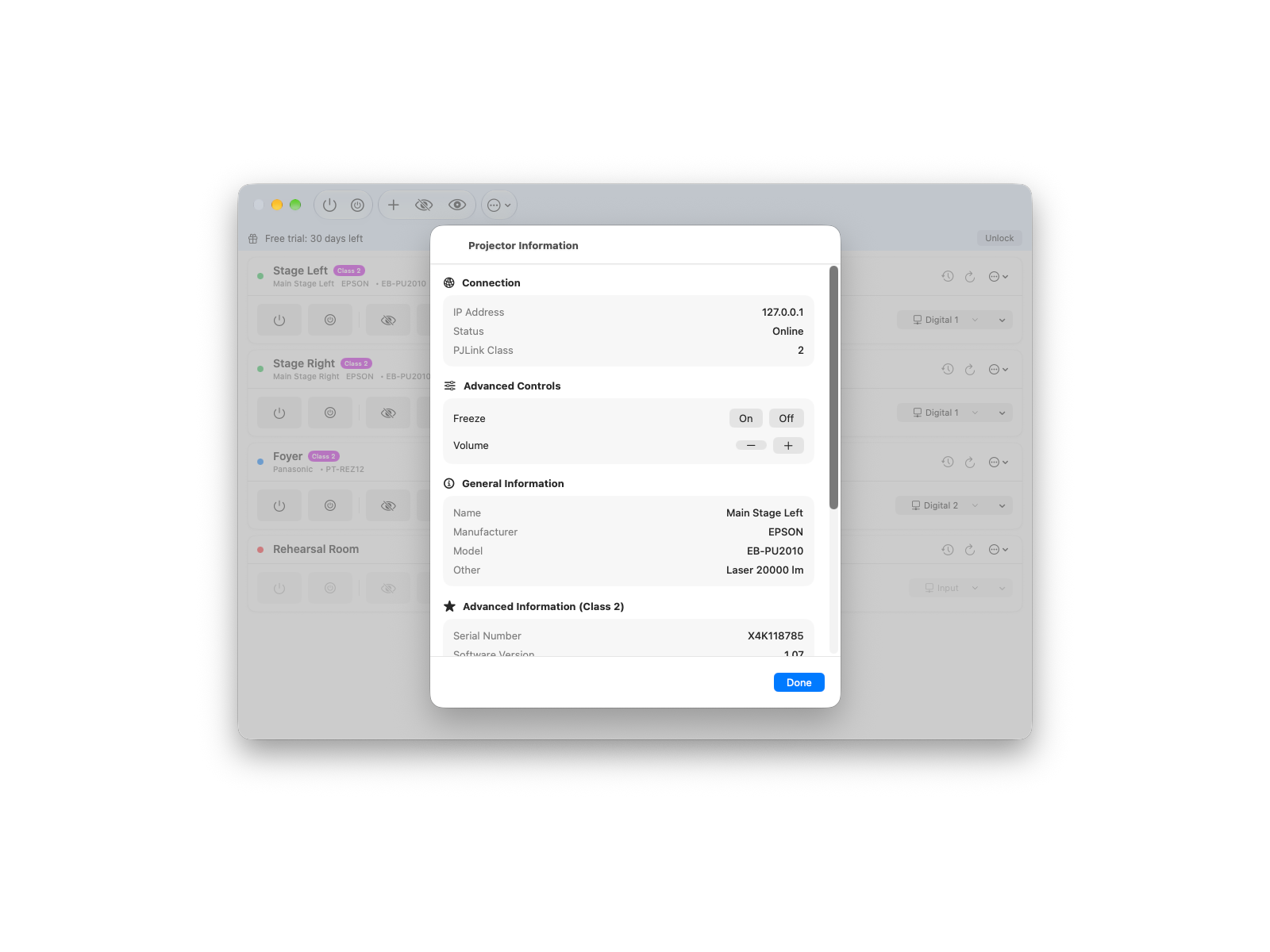
- PJLink Class 2 support: freeze, volume, serial number, firmware, filter usage, and more
- Actions on all projectors at once from the toolbar
- Live status, lamp hours, error reporting, and a detailed command log
- PJLink passwords are now stored in the Keychain
- AppleScript automation on macOS: power, mute, inputs, freeze, and volume
- Free download with a 30-day trial of every feature, then a free mode for one projector, or a one-time in-app purchase to unlock everything. Existing users also get the full 30-day trial.
Projector
Manager
Control PJLink® projectors and displays from Mac, iPhone, or iPad — power, shutter, input switching, status, and automation.
macOS + iOS
iPhone & iPad
v2.0
PJLink® Class 1 & 2
Free download with a 30-day trial of every feature. Unlock the full version with a one-time in-app purchase, valid on Mac, iPhone, and iPad.
§ 01 — About
Control PJLink® projectors and displays from Mac, iPhone, or iPad — power, shutter, input switching, status, and automation.
Made for theatres, venues, exhibitions, classrooms, and meeting rooms where projectors need to come on, go off, switch inputs, and report back — from the control desk or directly in the room.
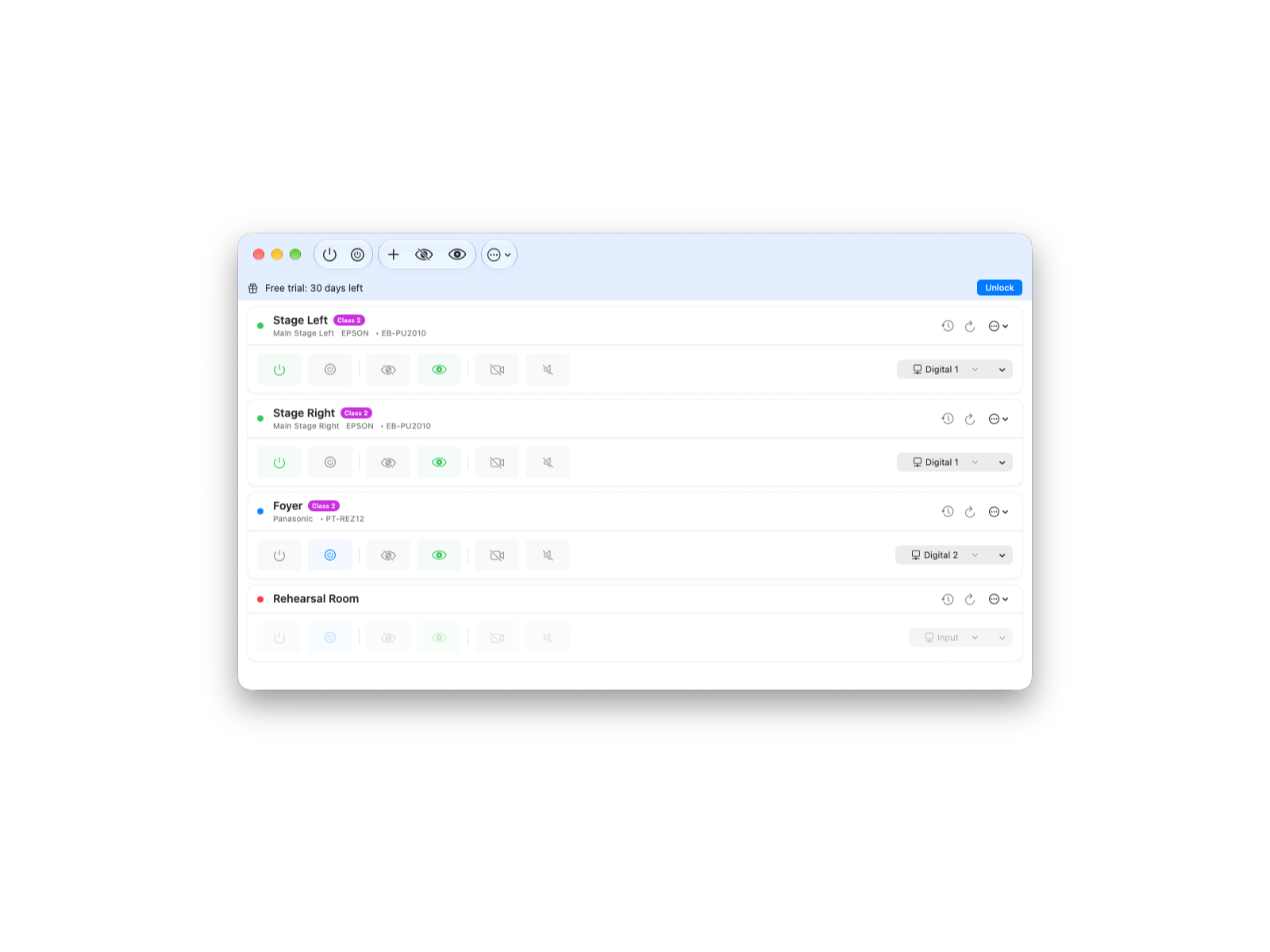
ProjectorManager talks to PJLink®-compatible projectors and displays over the local network. It handles the operations technicians need most: power on/off, image shutter, audio mute, input switching, and status checks — on one projector or on all of them at once.
Version 2 is a complete rewrite for macOS, and the first version for iPhone and iPad. It supports PJLink Class 2 (freeze, volume, serial number, firmware, filter information), keeps PJLink passwords in the Keychain, and preserves AppleScript automation on macOS for show startup and shutdown.
ProjectorManager is free to download, with every feature unlocked for 30 days. After the trial, the free mode keeps working with one projector. A one-time in-app purchase unlocks the full version on Mac, iPhone, and iPad — no subscription.
§ 02 — Features
Three things it does well.
01
PJLink control
Add projectors by IP address, then control power, A/V mute, input selection, freeze, and volume — one projector at a time or all of them at once.
02
Mac, iPhone, and iPad
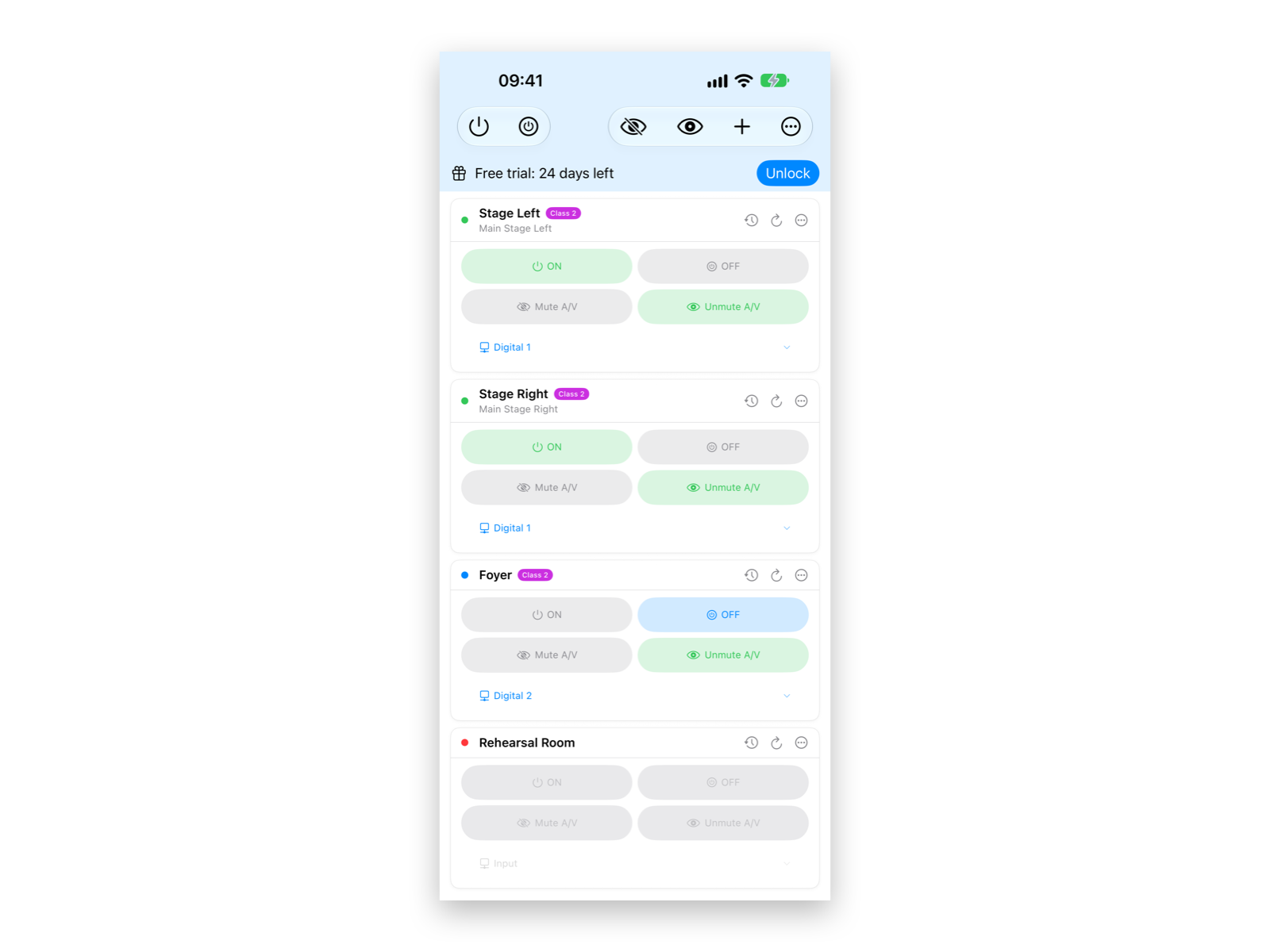
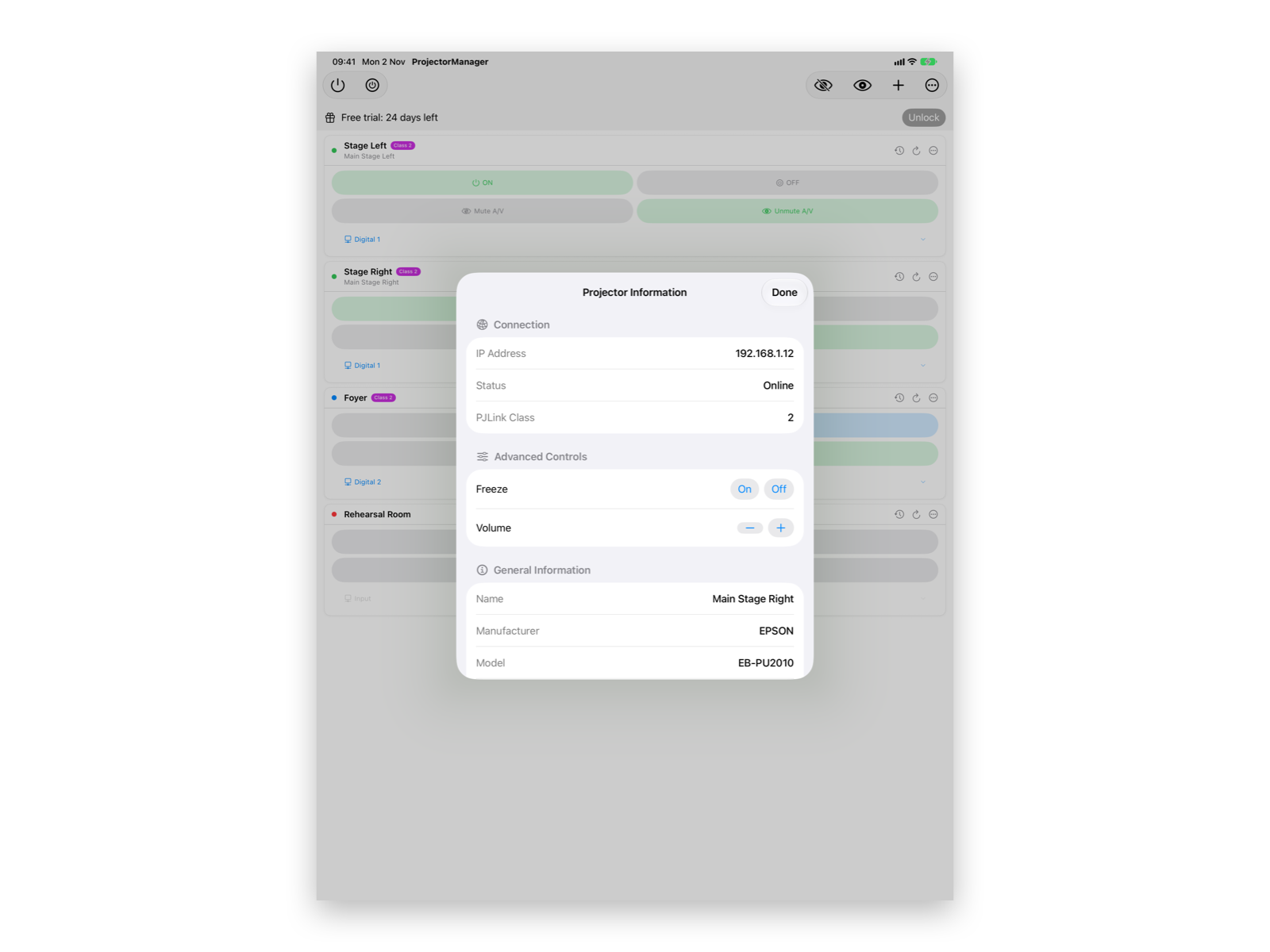
Use the Mac app at the control station, or the iPhone/iPad interface when walking the room, checking sightlines, or validating projectors on site. One purchase covers all your devices.
03
Status and automation
Read lamp hours, errors, model, serial number, and firmware, with a detailed command log for troubleshooting and AppleScript automation on macOS.
§ 03 — Gallery
Screenshots.
§ 04 — Requirements
What you need.
Operating systems
macOS 15.6 or later, iOS/iPadOS 17.6 or later
Devices
Mac, iPhone, and iPad
Protocol
PJLink® Class 1 and Class 2
Network
Local TCP access to projector IPs, port 4352
iOS permissions
Local network access
macOS automation
AppleScript support
Price
Free download, 30-day trial, one-time in-app purchase for the full version
Latest version
2.0 — complete rewrite, now on iPhone and iPad
§ 05 — Release notes
What's new.
- Better AppleScript support
- Input selection through AppleScript
- Added keyboard shortcuts
- Added AppleScript/JavaScript support
- Minor modifications
- First public release
§ 06 — FAQ
Quick answers.
01 What is PJLink®?
PJLink® is a standard network-control protocol used by many projectors and professional displays. ProjectorManager controls devices that expose PJLink Class 1 or Class 2 over the local network.
02 Is ProjectorManager free?
ProjectorManager is free to download, and every feature is unlocked for 30 days. After the trial, the free mode keeps working with one projector (power, status, and one mute per hour). A one-time in-app purchase unlocks the full version on Mac, iPhone, and iPad — no subscription. The free mode is meant for evaluation: for live shows and production use, please unlock the full version.
03 My projector is on the network but ProjectorManager says it's offline.
Three things to check, in order:
1. The projector has PJLink enabled in its menu (many have it off by default).
2. Your Mac, iPhone, or iPad and the projector are on the same subnet, or your network routes TCP traffic between them.
3. Port 4352 isn't blocked by a firewall.
If your projector requires a PJLink password, enter it when adding the projector, or later with Edit in the projector's menu. On iPhone and iPad, also check that ProjectorManager is allowed to access the local network in Settings › Privacy & Security › Local Network.
1. The projector has PJLink enabled in its menu (many have it off by default).
2. Your Mac, iPhone, or iPad and the projector are on the same subnet, or your network routes TCP traffic between them.
3. Port 4352 isn't blocked by a firewall.
If your projector requires a PJLink password, enter it when adding the projector, or later with Edit in the projector's menu. On iPhone and iPad, also check that ProjectorManager is allowed to access the local network in Settings › Privacy & Security › Local Network.
04 Does ProjectorManager work with non-PJLink projectors?
No. ProjectorManager speaks PJLink only. If your device doesn't support PJLink but does respond to RS-232C or proprietary network commands, it won't work with ProjectorManager. Many modern projectors have PJLink — check the manual for an option called "PJLink" or "network control protocol".
05 Some commands fail on a PJLink-compatible projector — why?
PJLink is standardized, but real projector implementations vary. Some models accept PJLink connections but return unusual answers or support only part of the command set. Freeze, volume, and the advanced information require PJLink Class 2. If a model behaves strangely, send us the exact brand/model and the logs from ProjectorManager.
06 Can I automate show startup and shutdown?
Yes on macOS, with the full version. ProjectorManager supports AppleScript commands for powering projectors on/off, muting/unmuting video, audio, or A/V, switching inputs, and freeze and volume on Class 2 projectors. This is useful for repeatable installation startup and shutdown scripts. On iPhone and iPad, the interface is touch-first rather than AppleScript-driven.
07 What does the iPhone/iPad version need?
The iOS/iPadOS app asks for permission to access the local network so it can talk directly to PJLink devices. The iPhone or iPad must be on a network that can reach the projector IP addresses, just like the Mac version.
08 Can I get a refund?
ProjectorManager and its in-app purchase are sold through the App Store. Refunds are handled by Apple via reportaproblem.apple.com.
Still stuck? Contact support →
Ready when you are.
Free download with a 30-day trial of every feature. Unlock the full version with a one-time in-app purchase, valid on Mac, iPhone, and iPad.